This new EI WiSER® 3X firmware update allows you to change the Wi-Fi channel that the sensor uses. In some networks, the channels may be occupied by other applications or have a lot of data traffic, causing the EI WiSER® 3X to disconnect from your Digivibe MX® software or WiSER VIBE® app.
With this new firmware you will be able to choose between channel 1, 6 and 11 to communicate with your devices and avoid failures. For this update you will need two files:
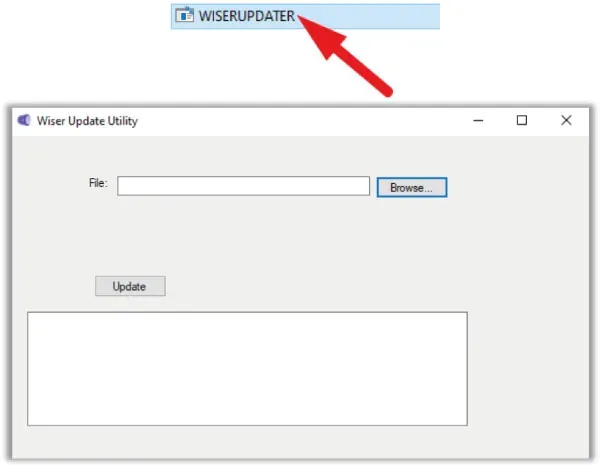
- WISERUPDATER.exe
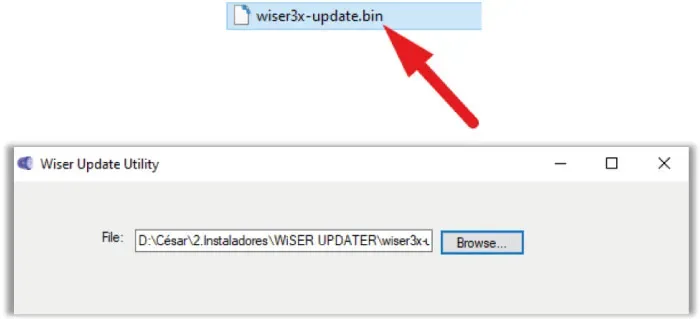
- wiser3x-update.bin
Click here to contact our technical support team and get the files ►
1.- UPDATING THE SENSOR
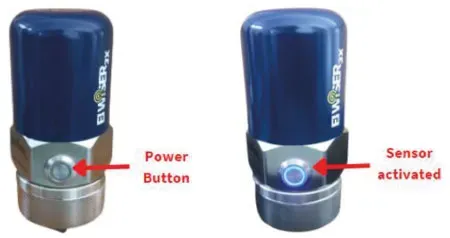
To update your sensor, first activate it using the power button. You will know it is on when you see the blue light around the button:
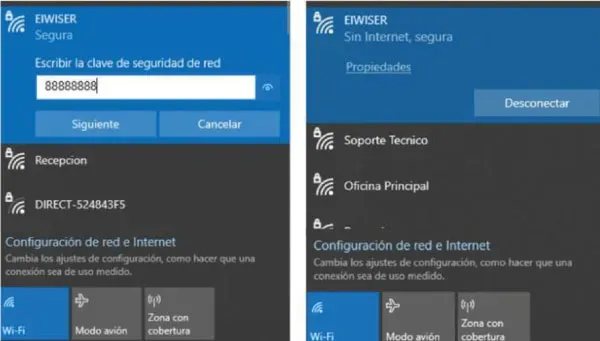
Now, connect your computer or tablet to the Wi-fi network generated by the sensor, called “EI-WiSER“, password is 88888888:
Once you are connected to the network, open the WISERUPDATER.exe application:
Click “Browse” and load the wiser3x-update.bin file from your file explorer
Now, click “Update” to update the EI WiSER® 3X:
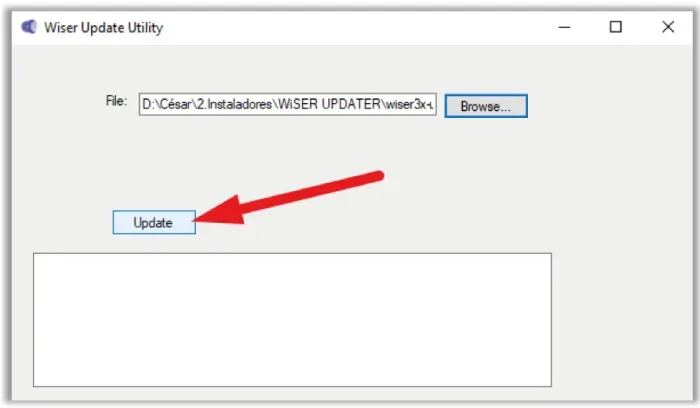
At the bottom, you will see a loading screen, at the end you will see the message “Success“:
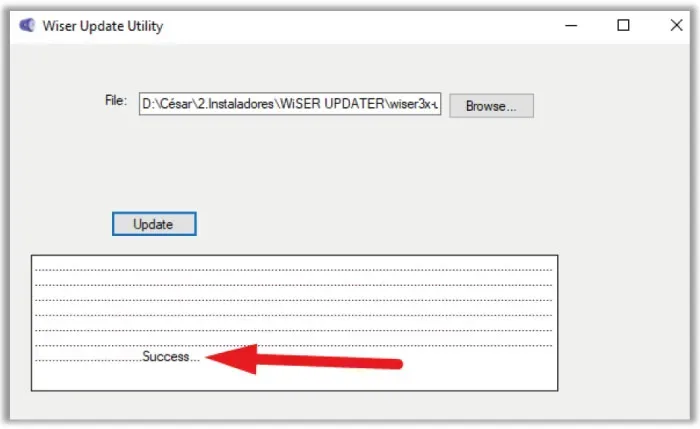
With this, your triaxial wireless accelerometer, EI WiSER® 3X, will be up to date.
2.- CHANGING WI-FI CHANNEL
Once the sensor is updated, we can change the Wi-Fi channel. To change the EI WiSER® channel, you must press the power button for about 10 seconds until the power button flashes 3 times. Follow the steps below to change the channel. It is recommended to finish reading the whole process before starting:
Step 1 – Activate the “Channel Change” Mode
Press and hold the power button for about 10 seconds, until the blue led light flashes 3 times, after that you can release it and the channel change mode will be active.

Step 2 – Change Channel
Once in this mode, you can initiate the change. Press the power button once to switch from one channel to another.
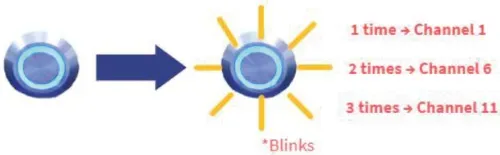
The EI WiSER® 3X will start on the last channel used, each time you press the button once the sensor will switch to the next channel and will blink once when switching to channel 1, twice when switching to channel 6 and three times when switching to channel 11.
Step 3 – Select Channel
Once you have switched to the channel you want to use, wait 3 seconds. The sensor’s blue light will turn off by itself and it will be set to the last channel you switched to.

If you have any troubles or questions, please contact our technical support team, click here ►