EXPORT DATABASES
To transfer the recorded signals from 1 or many machines from the local database to another computer for backup or later analysis:
- Select the machine(s) to be transferred
- Click on “Export” the selected items to a disk drive or another folder
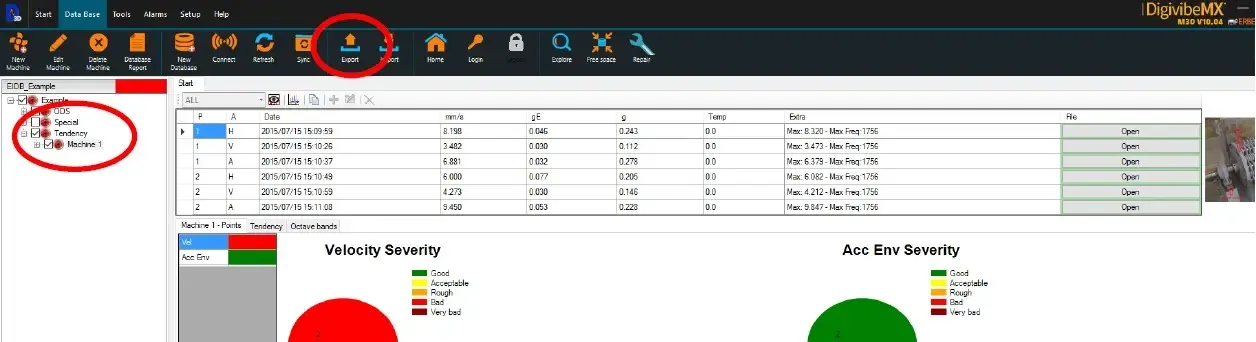
- Save the new database as an SQLCe file :
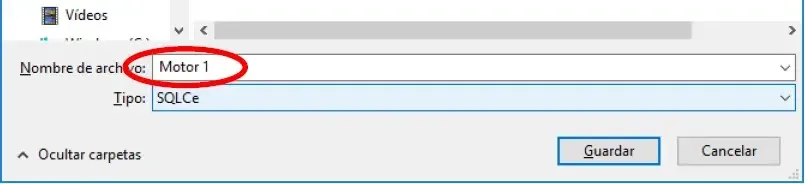
- select “All Values” and “Copy files” to transfer also the files from the recorded
You can also select only the « last values » with files to save space on hard drive.
Important : Copying all the files can result in a big-size database that is difficult to send by email.
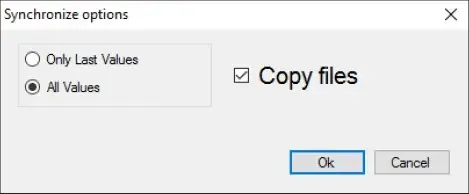
Now the exported database can be sent by email or by USB key to another computer for analysis or just for storage.

OPEN/IMPORT A DATABASE
Whether a database has been exported for other people to analyze it or for backup, there are 2 ways to import it:
- Open the exported database
- Synchronize the exported database with the main
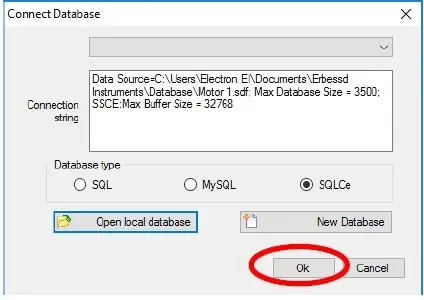
To just open a database, go to “Database”, then “Connect to another DB” and click on “Open local database” to choose the exported database:
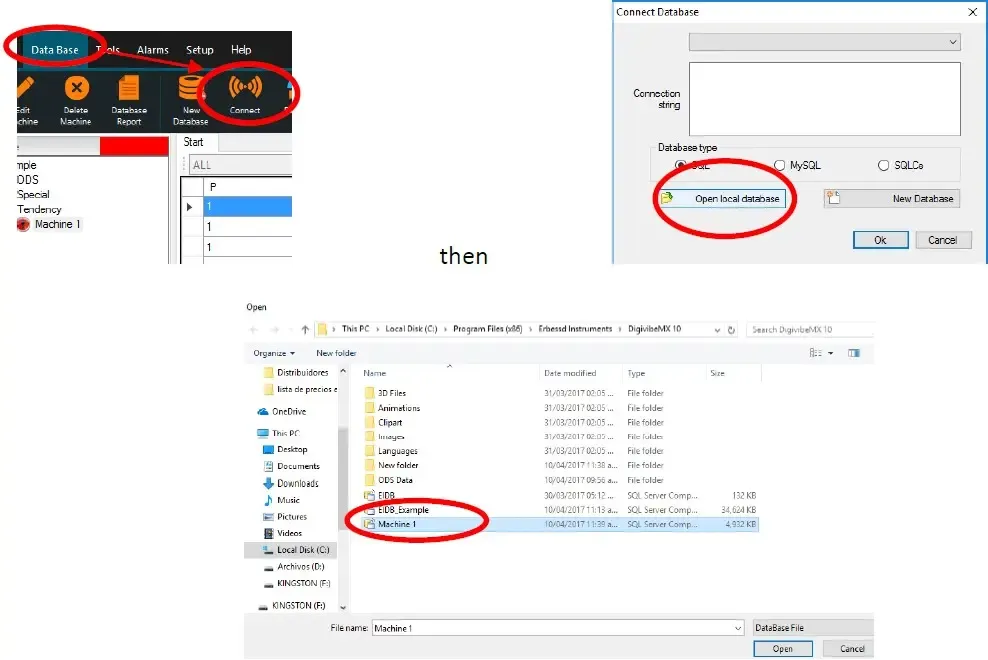
You can see the command line to access the database:
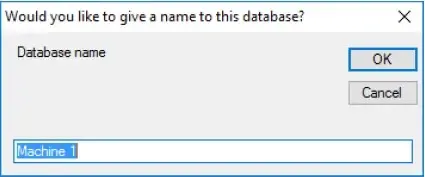
Choose a name to identify it:
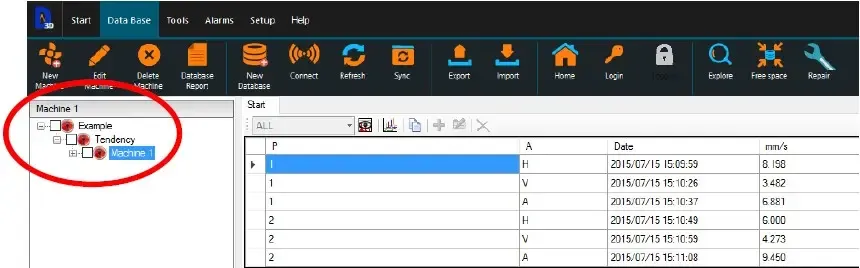
Now you can work with the newly imported database:
SYNCHRONIZE THE EXPORTED DATABASE
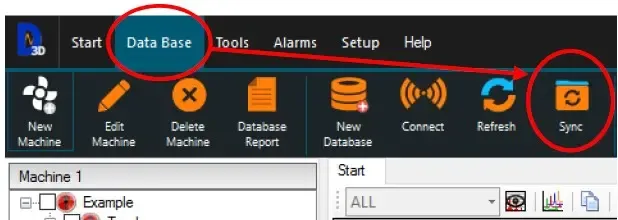
To synchronize an exported database with the Main Database, go to “Database” and “Synchronize”.
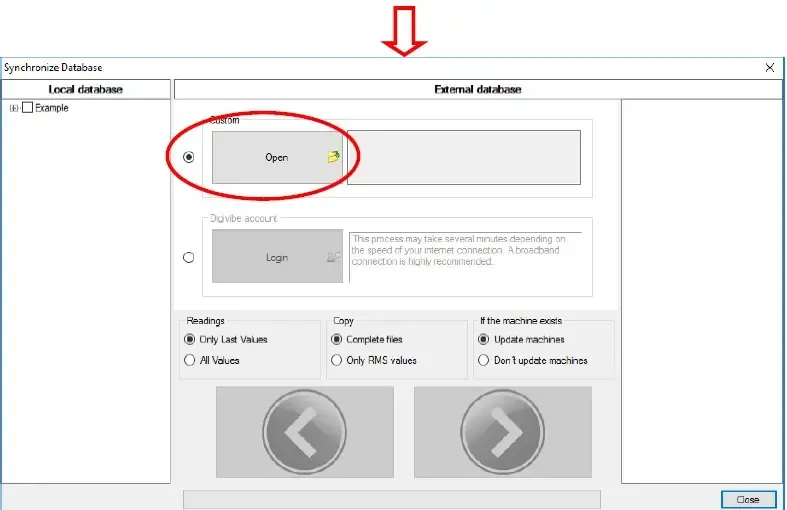
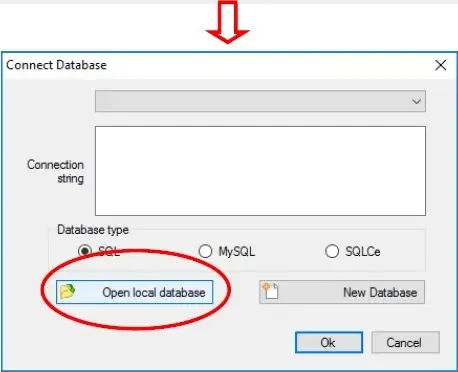
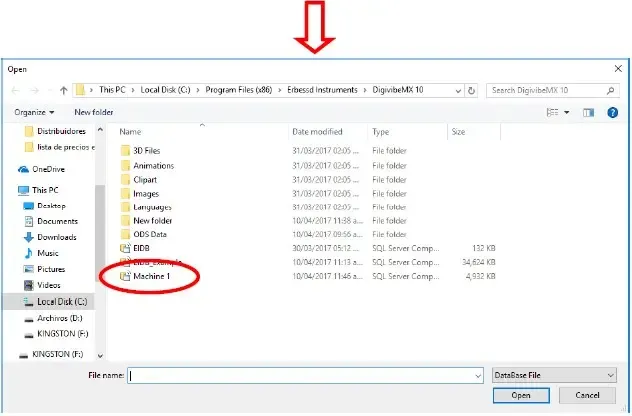
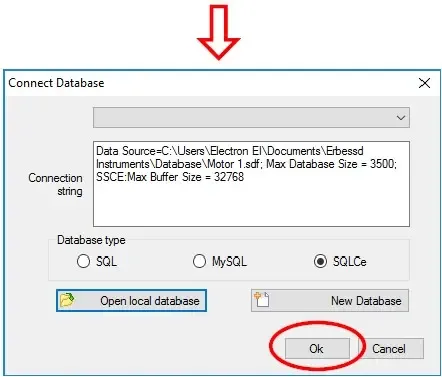
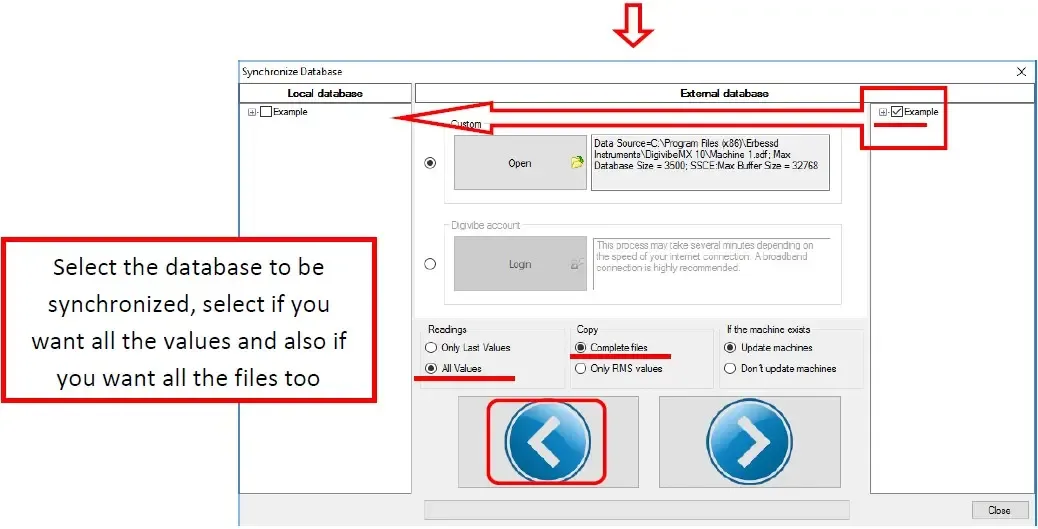
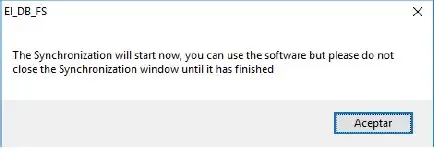
The sync is going to start. Do not interrupt the process:
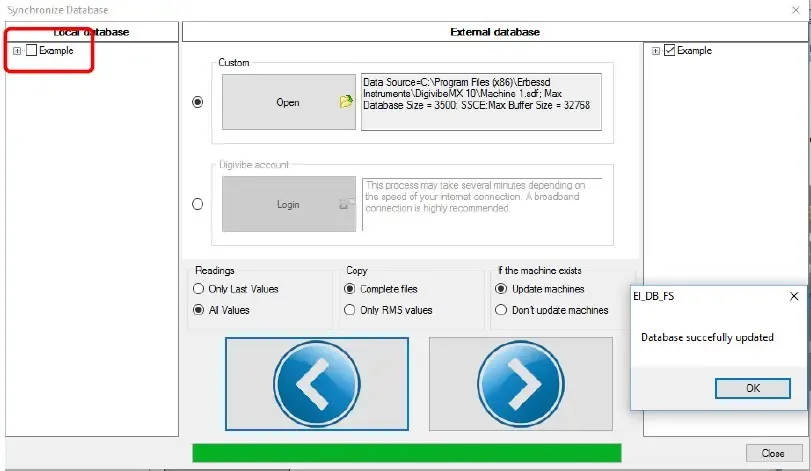
The sync was successful and the exported database is now integrated into the central database:
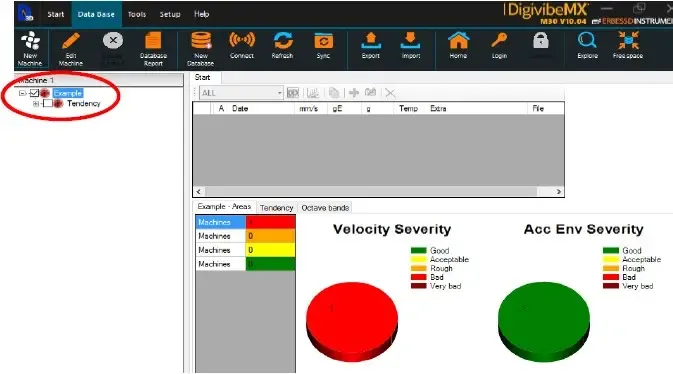
The main database has been updated and is now ready to use.
COLORED ALARMS IN THE DATABASE
Setting Alarms:
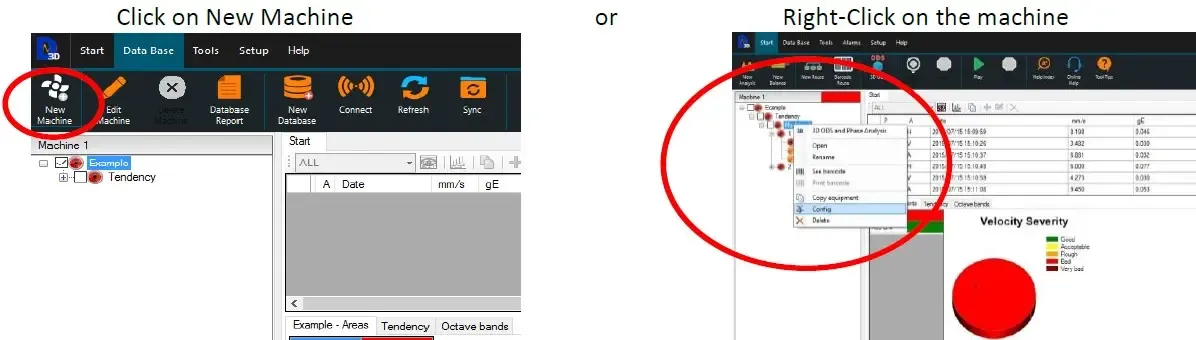
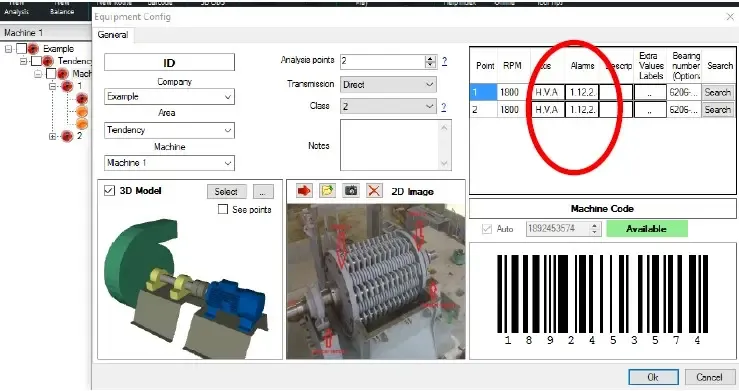
The configuration window is displayed. Click on any “Alarms” box to modify the alarm level:
ISO 10816 establishes values according to the following machine classes :
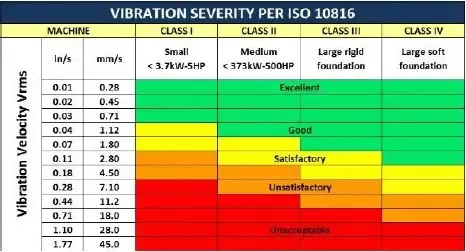
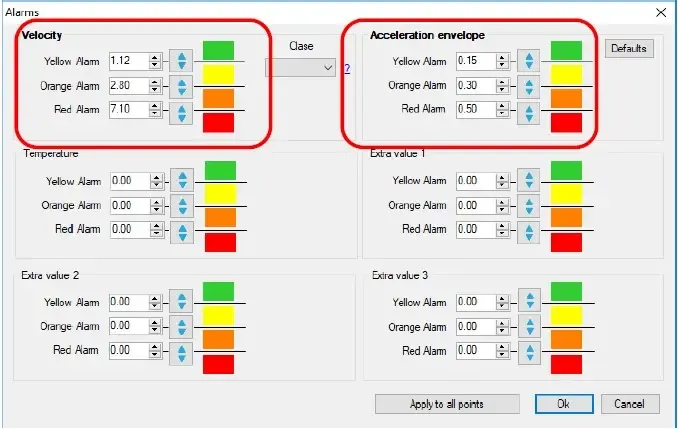
Select the most appropriate values according to the machine you are setting up, or with the normal working vibration levels depending on the kind of machine. A standard ventilator has different normal vibration levels than a compressor or a precision grinding machine.
Values in velocity units are for low-frequency vibrations like imbalance, misalignment, looseness. etc. Values in acceleration envelope units are for high-frequency vibrations like bearings and gearboxes.
The left tree-database displays a color for:
- the maximum alarm level of the company and area
- the average alarm level of each machine and its points